Advertisement
How to stop Safaricom MyOneApp from logging out repeatedly
Sunday 26th July, 2026 12:21 AM|

Few things are more frustrating than opening Safaricom’s MyOneApp to send money through M-PESA, buy airtime or manage your account, only to find you’ve been logged out again. If this keeps happening, you are not alone.
Many users, particularly Kenyans living abroad, have reported repeated sign-in requests when using the app over Wi-Fi.
The good news is that the issue is often linked to MyOneApp’s security verification process rather than a fault with your account. By making a few changes to how you access the app, you can reduce repeated logouts and enjoy a smoother experience.
Quick answer: If Safaricom MyOneApp keeps logging you out, sign in using Safaricom mobile data whenever possible, keep your SIM active in your phone, update the app regularly, avoid using VPNs, minimise switching between Wi-Fi and mobile data, and ensure international roaming is enabled if you’re abroad. These steps help reduce repeated security verification requests.
Use mobile data
You Might Also Like



The easiest way to reduce repeated logouts is to sign in using Safaricom mobile data instead of Wi-Fi whenever possible. MyOneApp verifies your identity through your Safaricom SIM card, making authentication more seamless when connected to the operator’s network.
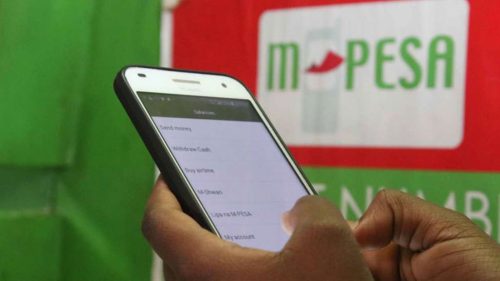
If you’re travelling outside Kenya and mainly rely on Wi-Fi, try completing your initial login over Safaricom mobile data before switching to Wi-Fi. While this may not eliminate future verification requests, it often improves the stability of your login session.
You should also keep your Safaricom SIM inserted in your phone and avoid moving it between devices unnecessarily, as the app may interpret these changes as a potential security risk.
Update MyOneApp
Keeping MyOneApp updated ensures you benefit from the latest security improvements, bug fixes and performance enhancements. Running an outdated version may increase the likelihood of authentication issues or unexpected app behaviour.
If the app keeps logging you out, clear its cache, restart your device and sign in again. If the problem persists, uninstall and reinstall MyOneApp to remove any corrupted files that may be affecting your login session.

Avoid network changes
Frequently switching between Wi-Fi and mobile data can trigger fresh security checks because the app detects a change in your connection. Remaining on one network during a session can help reduce unnecessary authentication requests.
If you use a VPN, consider disabling it before opening MyOneApp. VPNs often change your IP address or virtual location, which may prompt additional identity verification as part of Safaricom’s fraud prevention measures.
Check roaming settings
For customers living or travelling abroad, confirming that international roaming is enabled can improve the app’s ability to verify your account. Keeping your Safaricom line active and ensuring your account details are up to date also helps minimise login problems while overseas.
Although many diaspora users depend on Wi-Fi because it is more affordable than roaming data, using Safaricom mobile data for authentication whenever it is available can make signing in much easier.
Why it happens
Safaricom says MyOneApp uses SIM-based authentication to verify that the person accessing an account is the legitimate subscriber. When you’re connected to the Safaricom mobile network, this verification happens more smoothly because the app can confirm your identity through your SIM card.
When you’re using Wi-Fi, especially on a foreign network while roaming, the app cannot rely on the same network-based verification. As a result, it may ask you to sign in again as an extra security measure.

Keep your account safe
Repeated sign-ins may feel inconvenient, but they play an important role in protecting your account. MyOneApp provides access to sensitive services, including M-PESA, airtime purchases, bundles, Home Fibre management and personal account information.
Additional verification helps reduce the risk of SIM-swap fraud, account takeover and unauthorised access to your mobile money. Spending a few extra seconds signing in is often a worthwhile trade-off for keeping your account secure.
If MyOneApp continues logging you out even after following these steps, contact Safaricom customer support. Persistent authentication problems while using Safaricom mobile data may indicate an account-specific issue that requires further investigation.
Repeated logouts in Safaricom MyOneApp are usually the result of built-in security checks rather than a fault with your account. Signing in with Safaricom mobile data, keeping the app updated, avoiding unnecessary network changes and ensuring your SIM remains active can significantly reduce repeated login requests while helping keep your M-PESA account secure.
Author
Latest News







Advertisement
More on Insights